
Pasting a link and getting back a clean MP4 file sounds simple, but most Instagram converter tools still make you sit through pop-ups, fake “download” buttons, or a signup form before the actual file shows up. An Instagram converter should do one thing well: turn a public video, Reel, or IGTV link into a file you can save. Nothing more.
This page walks through how converting from Instagram actually works, what changes between videos and Reels, why watermark-free downloads aren’t always possible, and where people usually get stuck.
What an Instagram Converter Actually Does
How an Instagram Converter Handles the File
An Instagram converter reads the link you paste, pulls the video file Instagram is already serving to your browser, and repackages it as a standard MP4. It’s not “hacking” into Instagram or bypassing any login, since the video was already public. The converter just saves a copy of it in a format your phone or computer can open outside the app.
Why an Instagram Converter Only Works on Public Content
That’s also why every Instagram converter only works on public content. If an account is private, the video file isn’t being served to browsers that aren’t logged in and approved as a follower, so there’s nothing for the converter to grab.
Convert From Instagram to MP4: How the Link-to-File Process Works
Every Instagram post, Reel, and IGTV video is stored as a video file on Instagram’s servers, even if the app never shows you a direct download button. When you convert from Instagram to MP4, three things happen behind the scenes:
The Link Gets Read
The converter checks whether the URL points to a real, public Instagram post and pulls the post’s ID from it.
The Video Source Is Located
Instagram’s page includes a direct link to the raw video file. it’s just hidden from normal browsing. The converter finds this link.
The File Gets Served Back to You
Instead of opening inside Instagram’s player, the video is offered as a downloadable MP4.
The output quality depends entirely on what Instagram uploaded in the first place. A converter can’t add resolution that wasn’t there. if the original Reel was compressed to 720p, that’s the ceiling for the MP4 you’ll get, regardless of what any tool claims.
Why “Convert From Instagram to Video” Sometimes Fails
A link that won’t convert almost always comes down to one of these:
- The account switched to private after the link was shared, the post was deleted or the Reel was archived, or the URL was copied incorrectly (missing characters, or a shortened link that redirects somewhere else first). Instagram also changes things on their end often enough that any converter needs regular updates just to keep working.
If a link fails, checking whether the post still opens normally in a browser is the fastest way to rule out the first two.
Instagram Converter for Reels
Reels convert the same way regular posts do, but there’s a detail worth knowing. Reels are often served in a different container format than feed videos, since Instagram optimizes them for vertical, short-form playback. A converter built only for older Instagram video formats can choke on newer Reels, which is why some downloader tools that haven’t been updated recently fail specifically on Reels while feed videos still work.
Audio matters more here too. Reels frequently use licensed music tracks, and Instagram sometimes serves a version with the audio slightly out of sync when pulled outside the app. If a converted Reel’s audio drifts by a second or two, that’s usually an Instagram-side encoding quirk, not something wrong with the converter.
Convert From Instagram Without Watermark
Why Most Reels Don’t Need a Watermark Removed
This is where a lot of converters oversell what they can do. Instagram doesn’t stamp a watermark onto standard posts or Reels uploaded directly through the app, so if you’re using an Instagram converter on an ordinary Reel, there’s usually nothing to remove in the first place. The “watermark-free” claim on most download pages is really just describing normal behavior, not a special feature.
When a Watermark Actually Shows Up
There are two real situations where one appears. Sometimes the creator added a “Made with” or TikTok/CapCut watermark before posting, and that logo is baked into the actual video pixels. No converter can strip it out without cropping or re-encoding the clip, which lowers quality either way. Other times you’re converting a re-shared video: someone downloaded a TikTok, slapped Instagram’s own share sticker on it, then posted it as their own. In that case the watermark belongs to whichever platform the video passed through first, not to Instagram.
An Instagram converter can only remove a logo it adds itself. If a competitor promises to strip a creator’s own watermark, be skeptical of how that’s actually done. It usually means cropping the frame, which cuts off part of the video.
How to Use This Instagram Converter
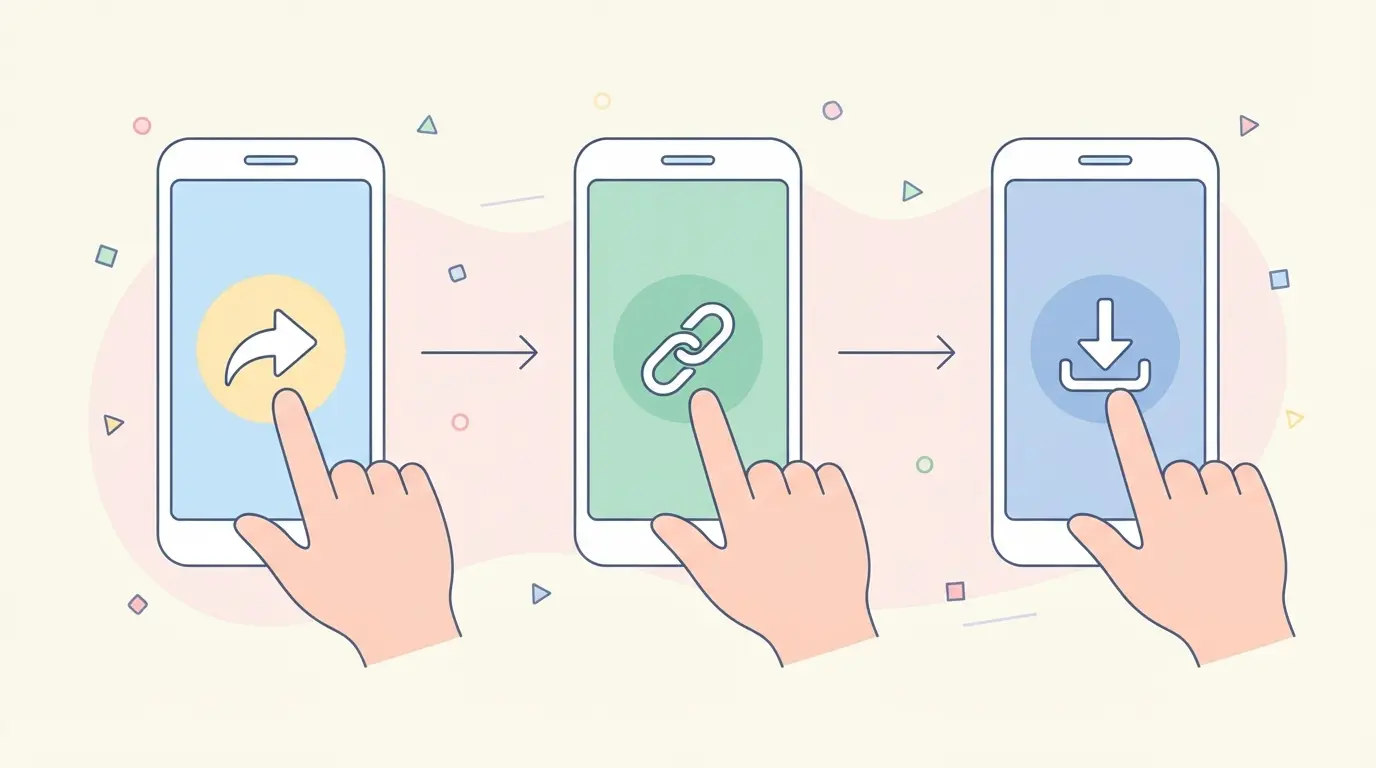
- Open the Instagram post, Reel, or IGTV video you want and tap the Share icon
- Select Copy Link
- Paste the link into the converter box on this page
- Choose MP4 and select a resolution if more than one is available
- Tap convert, then save the file to your device
The whole process runs in the browser. no app install, no account login needed on either end.
Common Problems When Converting Instagram Videos
The Download Button Doesn’t Respond
Usually a browser pop-up blocker interfering with the file transfer, or the link was pasted with extra spaces or characters at the end.
The Video Plays but Has No Sound
Some Instagram Reels separate video and audio into different streams for playback efficiency. A converter that only grabs the video stream will produce a silent file. this is a tool limitation, not something on your end.
The File Won’t Open on iPhone
iOS sometimes saves converted files to the Files app instead of Photos by default. Check there first before assuming the download failed.
Quality Looks Worse Than the Original
This happens if Instagram only served a lower-resolution version for that specific link, which is common on older posts or on slower mobile connections at the time of upload.
For a closer look at converting Stories and IGTV specifically, see our full Instagram to MP4 guide.
FAQs
Is it legal to convert Instagram videos to MP4?
Downloading a public video for personal use is generally fine, but the video itself still belongs to whoever posted it. Reposting a converted video without permission or credit can violate copyright, even if the download itself was easy.
Do I need to log in to convert from Instagram?
No. Converting only works on public content precisely because no login is required. the tool can only access what a browser can already see without signing in.
Can this convert private Instagram accounts?
No. Private accounts aren’t served to browsers outside of approved followers, so there’s no public video file for a converter to reach.
Why does the converted video look different from what I saw on Instagram?
Instagram compresses videos for faster loading, and that compressed version is what gets converted. What you see in the app and what gets saved are usually the same file. any quality drop happened before conversion, not because of it.
Does converting from Instagram cost anything?
No, converting a public video or Reel to MP4 on this page is free and doesn’t require creating an account.