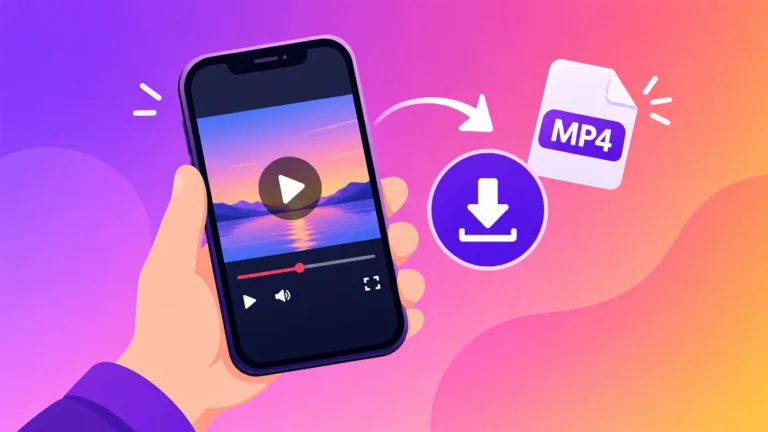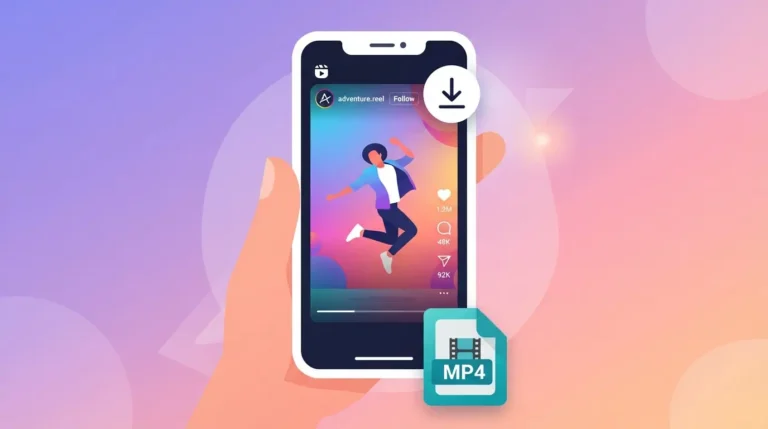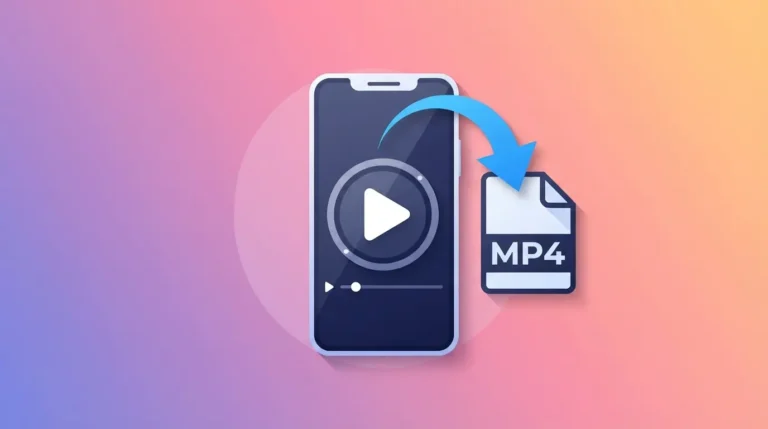

Want to save an Instagram video to MP4 on iPhone or Android? You can do it without installing an app. Copy the video’s link in Instagram, paste it into a web-based converter in your phone’s browser, and download the file. The video is saved as an MP4 that you can watch offline, edit, or send to friends. This works for public Reels and video posts.
Below you will find the steps for each phone, a comparison of the common methods, a short video, fixes for problems, and answers to the questions people ask most.
Quick Answer: The 4-Step Method
- Open the video in Instagram and tap the share icon or the three dots.
- Tap Copy link.
- Open your phone’s browser and go to a free converter such as Instatomp4.
- Paste the link and tap Download.
The next sections explain what to expect on each device.
Instagram Video to MP4 on iPhone: Step by Step
To convert an Instagram video to MP4 on iPhone, use Safari or another browser. You don’t need an Instagram login for public videos.
- In the Instagram app, open the video and tap the paper-plane share icon, then choose Copy link.
- Open Safari and go to the converter.
- Paste the link into the box and tap Download.
- When Safari asks whether to download the file, confirm.
- Find the MP4 in the Files app, usually in the Downloads folder. If you want it in your Photos app, open the file in Files and use the Share menu to save it.
The exact prompts can differ slightly between iOS versions, but the flow stays the same: copy, paste, download, then find the file in Files.
How to Convert an Instagram Video to MP4 on Android
Android works the same way, usually in Chrome.
- In Instagram, tap the share icon on the video and choose Copy link.
- Open Chrome and go to the converter.
- Paste the link and tap Download.
- Allow the download if your browser asks.
- Open your Downloads folder or the Files app to find the MP4. Many phones also show it in the Gallery after a moment.
If you want a general walkthrough that also covers computers, read our guide on how to save an IG video to your phone or computer.
Which Method Is Best for Instagram Video to MP4 on iPhone?
| Method | Gives you an MP4 file? | Things to know |
|---|---|---|
| Web converter (paste the link) | Yes | Works in the browser, no app needed. Public videos only. |
| Instagram’s Save button | No | Saves inside the app only. Nothing is stored on your phone. |
| Instagram’s in-app Download (where available) | Yes | May add the creator’s username or an overlay, and isn’t available for every video. |
| Screen recording | Yes, but not original | Captures buttons and notifications, and the quality is usually lower. |
For most people, a web converter is the simplest way to get a clean file. If you want to understand what separates a good tool from a bad one, our post on the Instagram MP4 downloader explains what to look for.
Video: Saving Instagram Reels to Your Camera Roll
If you would like to see Instagram’s own save-to-camera-roll option in action, this short tutorial walks through it on screen. You can also watch it on YouTube.
That option depends on the video and your region. When it isn’t available, the converter method above still works for public videos.
Why the Video Is Saved as MP4
MP4 is one of the most widely supported video formats. Phones, laptops, TVs, and almost every editing app can open it, so an MP4 file is easy to move between devices and share. That is the reason most people want an Instagram video as an MP4 rather than just a saved post.
If you want the full picture for Reels, regular videos, and Stories, our complete Instagram to MP4 guide goes through each type.
Troubleshooting
- Nothing happens when you tap Download. Refresh the page, paste the link again, and try a different browser.
- The converter says the video can’t be found. The account may be private, or the post may have been deleted. Only public content can be downloaded.
- The link looks odd. Use Instagram’s own Copy link option and paste the whole link.
- You can’t find the file. Check the Downloads folder in Files on iPhone, or the Downloads folder on Android.
- A site asks for your Instagram password. Close it. A real downloader for public videos does not need your login.
If you also want to turn videos into other formats, see how an Instagram converter works.
Is It Legal and Safe to Download Instagram Videos?
Saving a video for personal use, such as watching offline or keeping a copy of your own content, is what most people do. Videos still belong to their creators. Don’t re-upload someone else’s video as your own or use it commercially without permission, and follow Instagram’s terms and the copyright rules in your country.
For safety, avoid tools that ask for your Instagram login, push you to install unknown apps, or show many fake download buttons.
FAQ
Can I convert an Instagram video to MP4 on iPhone without an app?
Yes. A web-based converter works in Safari or any other browser, so there is nothing to install.
Do I need an Instagram account?
You need the link to the video, which you can copy from Instagram or from a link someone sent you. The converter itself doesn’t need your Instagram login.
Where is the MP4 saved on my iPhone?
Usually in the Files app, in the Downloads folder. You can then save it to Photos from the Share menu.
Where is the MP4 saved on Android?
Usually in the Downloads folder, and it often appears in the Gallery as well.
Can I download from a private account?
No. Only public videos can be downloaded.
Is the quality the same as on Instagram?
A converter downloads the video file Instagram serves for that post, so it is generally better than a screen recording, which re-captures what is on your screen.
Summary
To convert an Instagram video to MP4 on iPhone or Android, copy the link, paste it into a web converter in your browser, and download the file. Use the comparison table to pick the method that suits you, and check the troubleshooting list if something goes wrong. For a free converter you can try right now, visit Instatomp4 and paste your link.
Used Instatomp4? Tell others how it went. You can leave an honest review, good or bad, on Trustpilot. Your feedback helps us fix problems and helps other people decide.